

The Ultimate IBKR Trading Journal: Sync & Analyze Your Trades Automatically
Import or sync your Interactive Brokers trades into TradeBB and turn your IBKR trade history into a structured trading journal with P&L tracking, reports, notes, tags, calendar views, and multi-account analysis.
We use imported data only to provide journaling and analytics. Data is encrypted in transit and at rest, with strict access controls. You can disconnect and delete your data anytime.
Read our Privacy PolicyHow to Connect Interactive Brokers
Interactive Brokers uses a highly secure system called "Flex Queries" to share data. Setting up your Interactive Brokers trading journal requires a quick, one-time configuration. Once completed, TradeBB will securely parse your complex options and multi-asset trades automatically.
Follow this step-by-step guide to retrieve your Flex Query ID and Flex Token to complete the integration.
Step 1: Access Flex Queries
- Log in to your account on the official Interactive Brokers website.
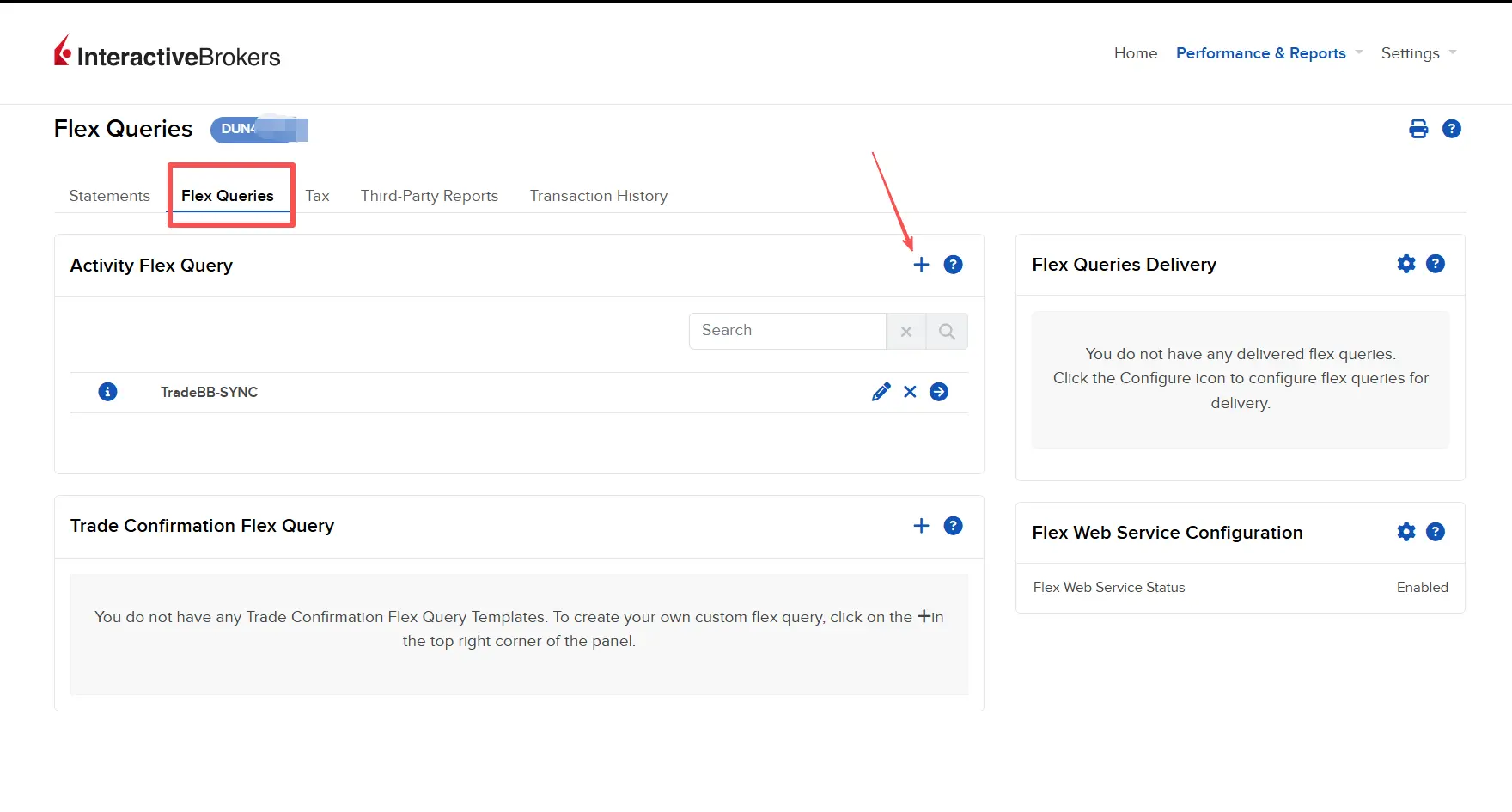
- In the top navigation bar, click on Performance & Reports.
- Select Flex Queries from the menu.
Step 2: Create a New Trade Query
- On the Flex Queries tab, locate the Active Flex Queries section.
- Click the + (Plus) icon on the right side to create a new query.
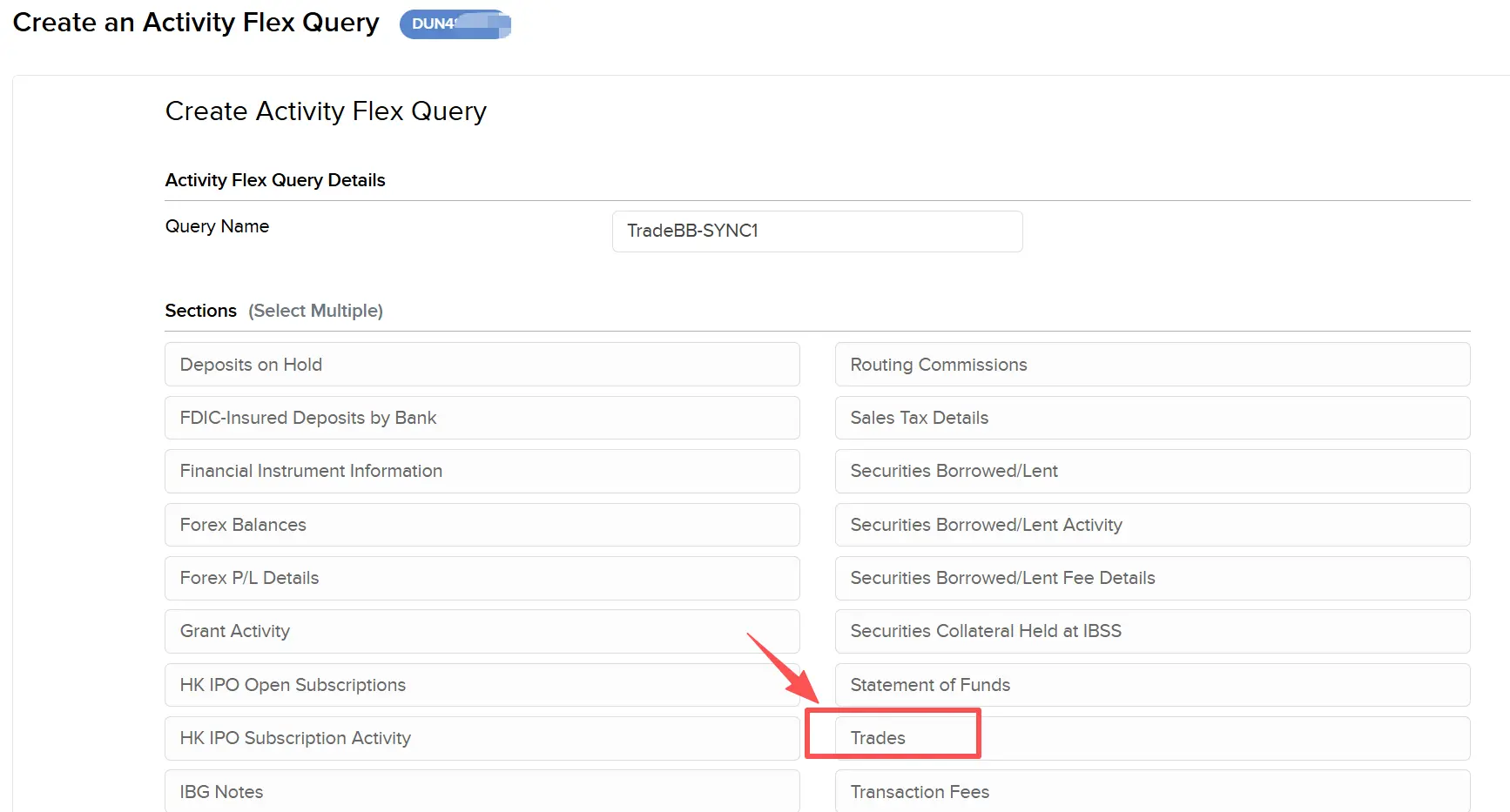
- Name your query: Give it a recognizable name (e.g., "TradeBB Journal").
- Under "Select Sections," choose Trades.
Step 3: Configure Trades Data
- A "Trades" configuration window will pop up.
- Select Executions from the options.
- Check the box for Select All to ensure all necessary data points are captured for your trading journal.
- Scroll to the bottom and click Save.
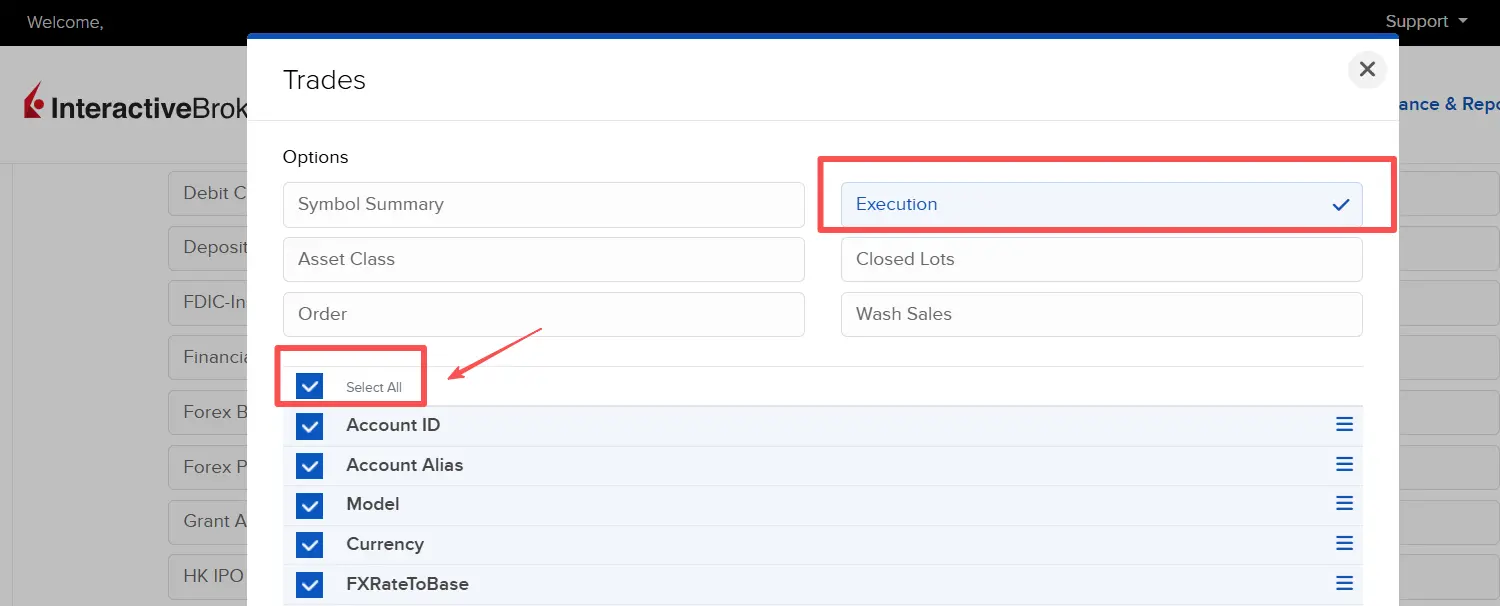
Pro Tip: Make sure to check Select All under Executions. This ensures TradeBB receives the critical commission and fee data needed to calculate your exact Net PnL
Step 4: Delivery Settings & History
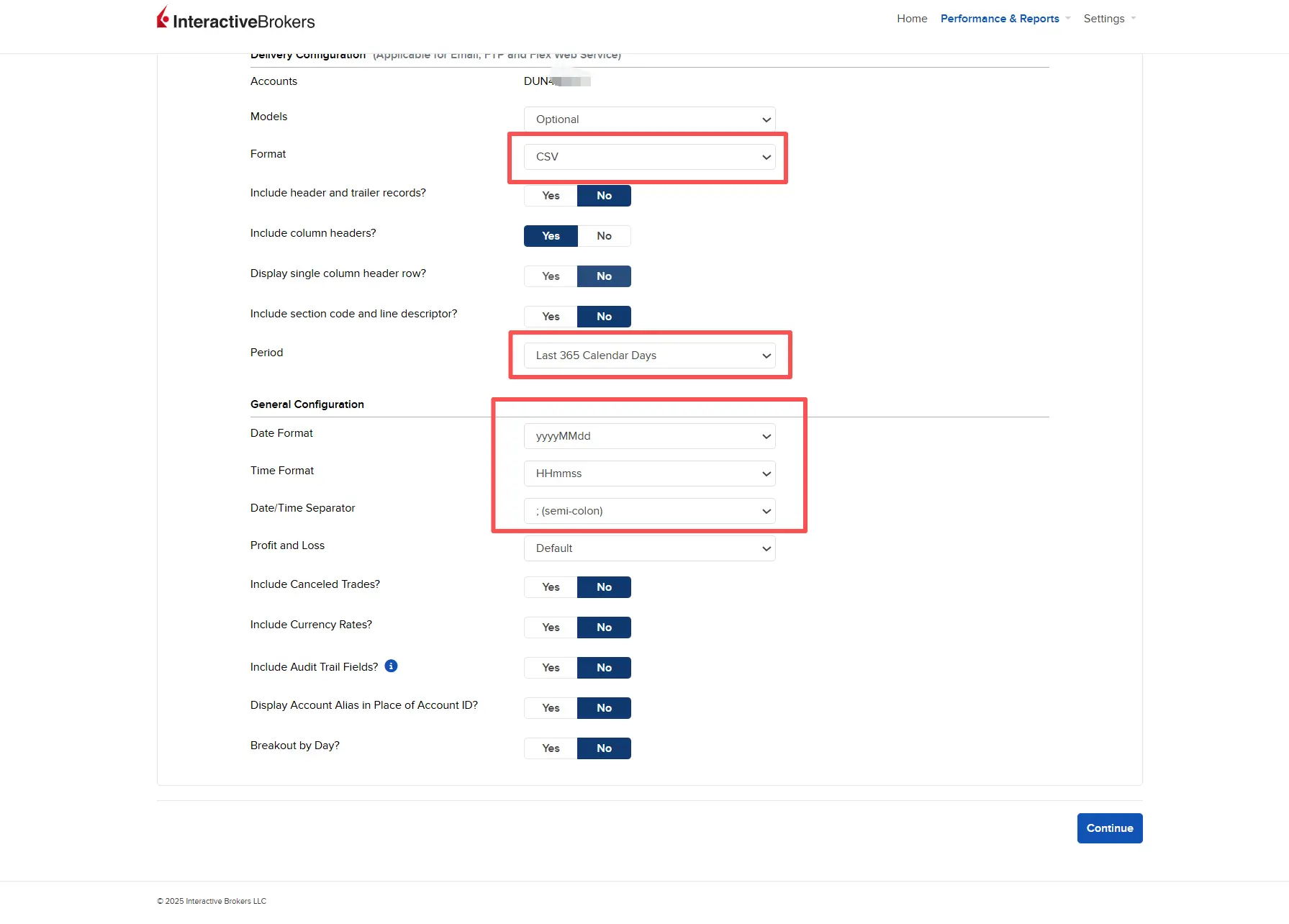
- Format: Under "Delivery Configuration," change the format to CSV and ensure "Include Header/Column Names" is checked.
- Time Period: Set the period to Last 365 Days.
- Click Continue.
Step 5: Finalize and Create
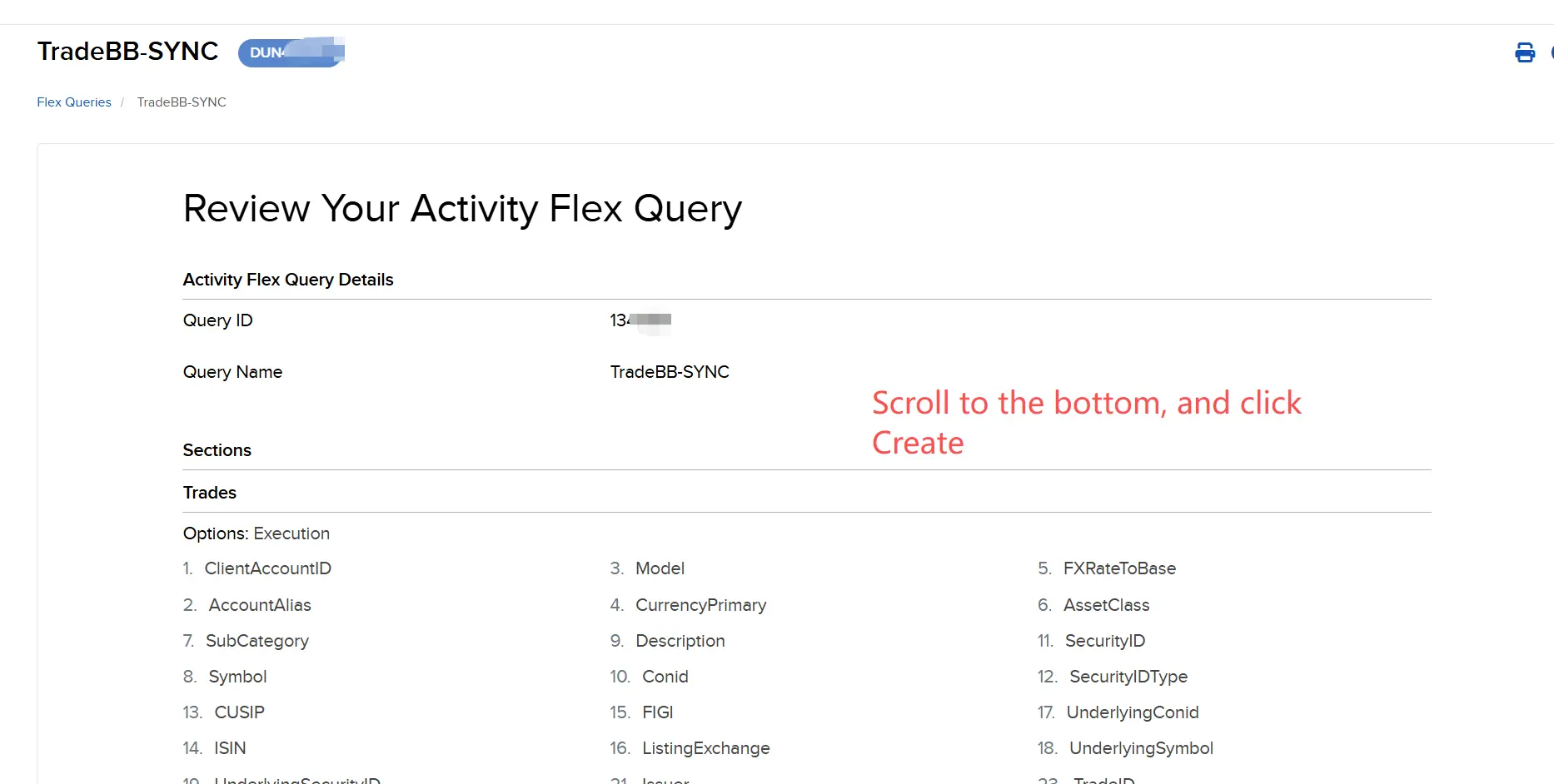
- You will be taken to the "Review Your Activity Flex Query" page.
- Review your settings, scroll to the bottom, and click Create.
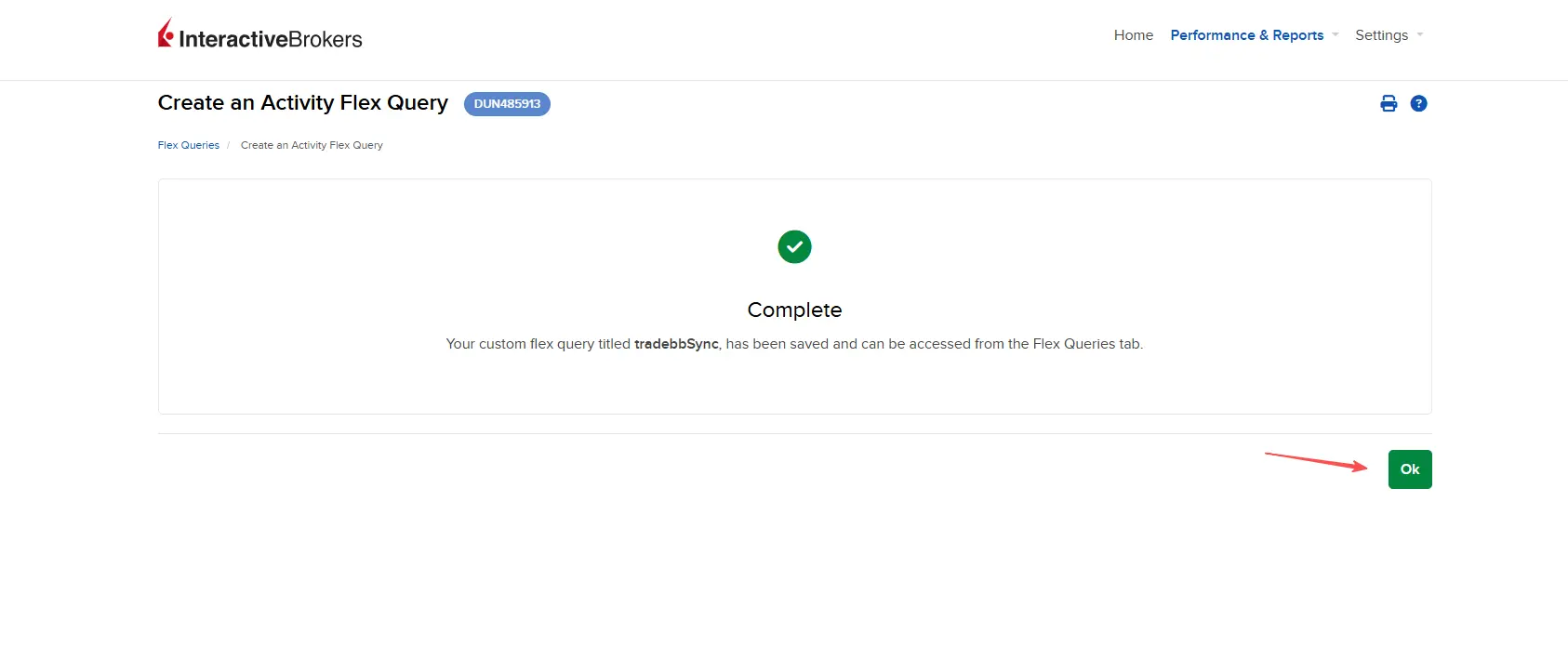
- You should see a confirmation message: "Create an Activity Flex Query - Complete."
- Click OK.
Step 6: Get Your Query ID
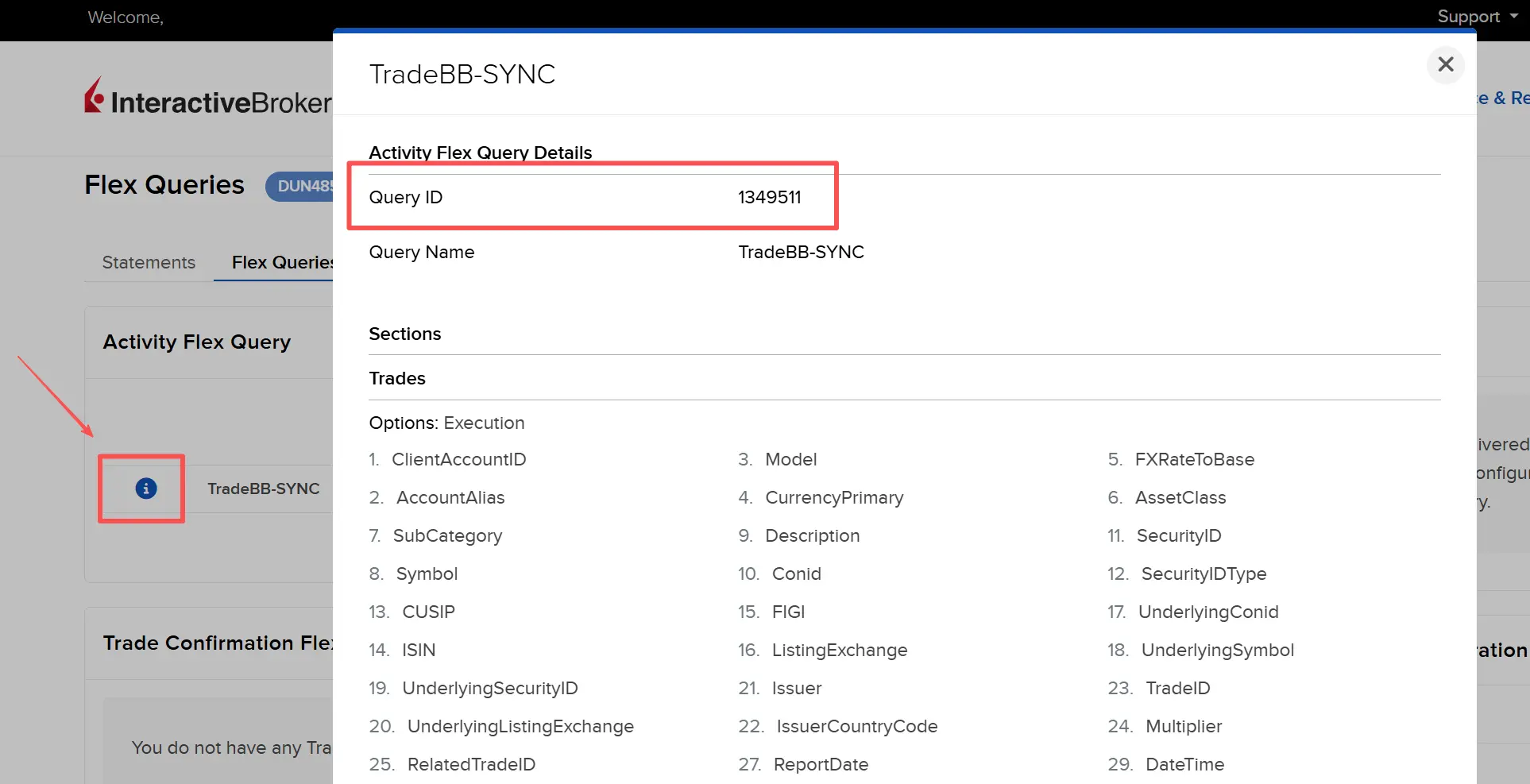
- Return to the Flex Queries tab.
- Find the query name you just created.
- Click the icon (indicated by the red arrow) next to your query.
- Copy the Query ID.
Step 7: Get Your Flex Token
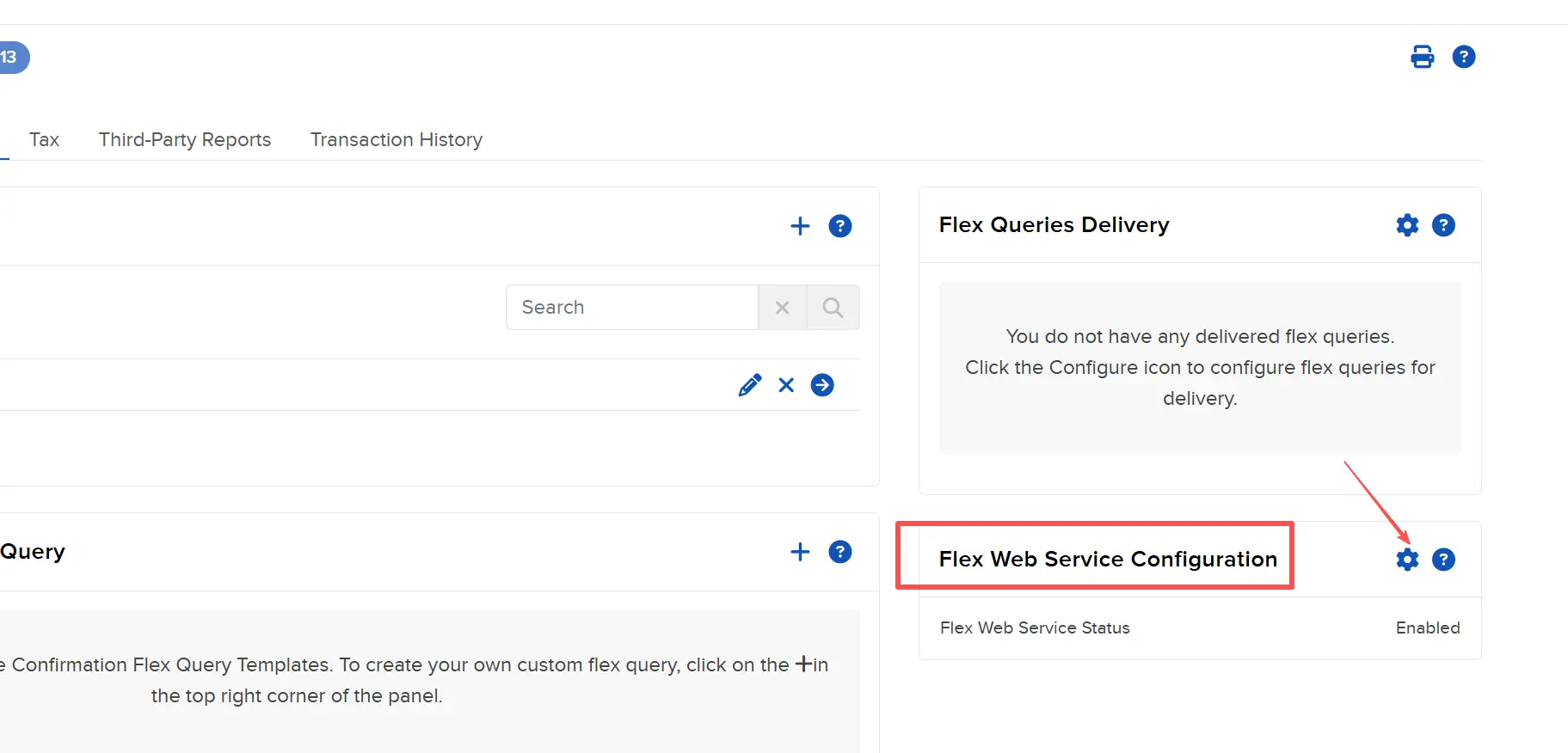
- On the same page, click on Flex Web Service Configuration.
- Follow the prompt to generate/view your token.
- Copy the Current Token(Flex Token). (Remember, this is the long string).
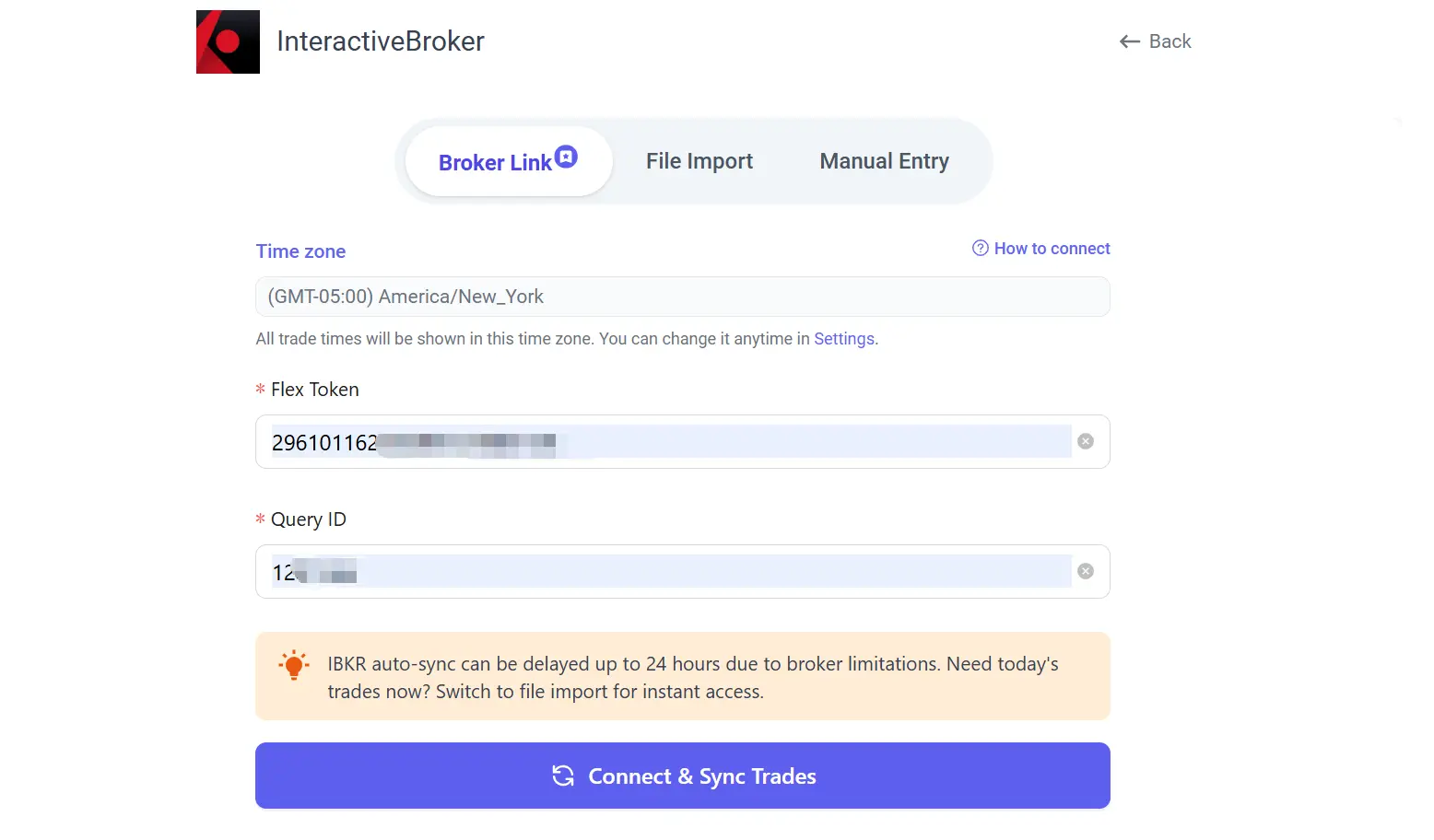
Important Note: Interactive Brokers often delays new Flex Tokens by up to 24 hours. If your Auto-Sync doesn't pull data immediately, don't worry—this is a broker limitation. For instant access to today's trades, use the File Import method below.
Step 8: Connect to TradeBB
How to Import IBKR Trades
Need to review today's setups immediately? Uploading a CSV is the fastest way to update your Interactive Brokers trading journal. Configure your export settings once, and generate your report anytime.
Follow this guide to configure your export settings and upload your data to TradeBB.
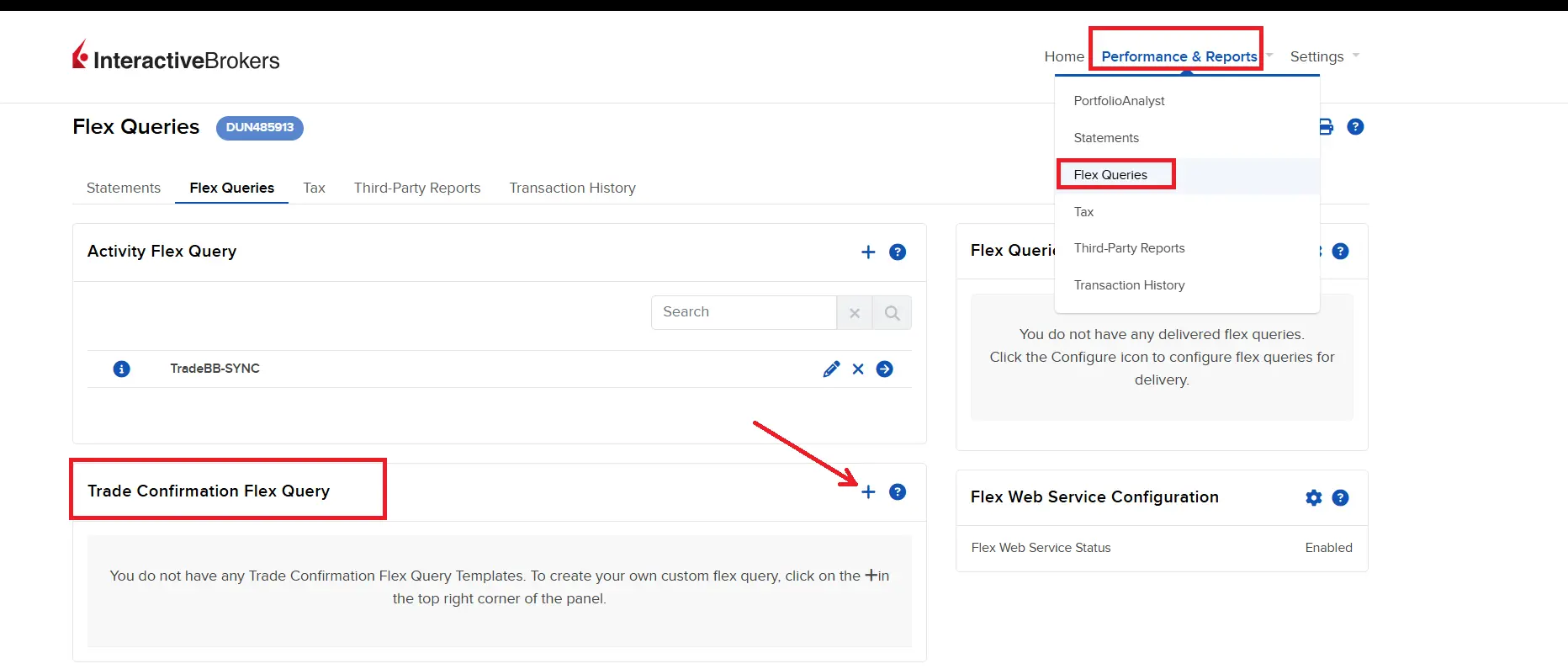
Step 1: Access Flex Queries
- Log in to the Interactive Brokers website.
- Navigate to Performance & Reports > Flex Queries.
- Locate the Trade Confirmation Flex Query section and click the + (Plus) icon.
Step 2: Configure the Query
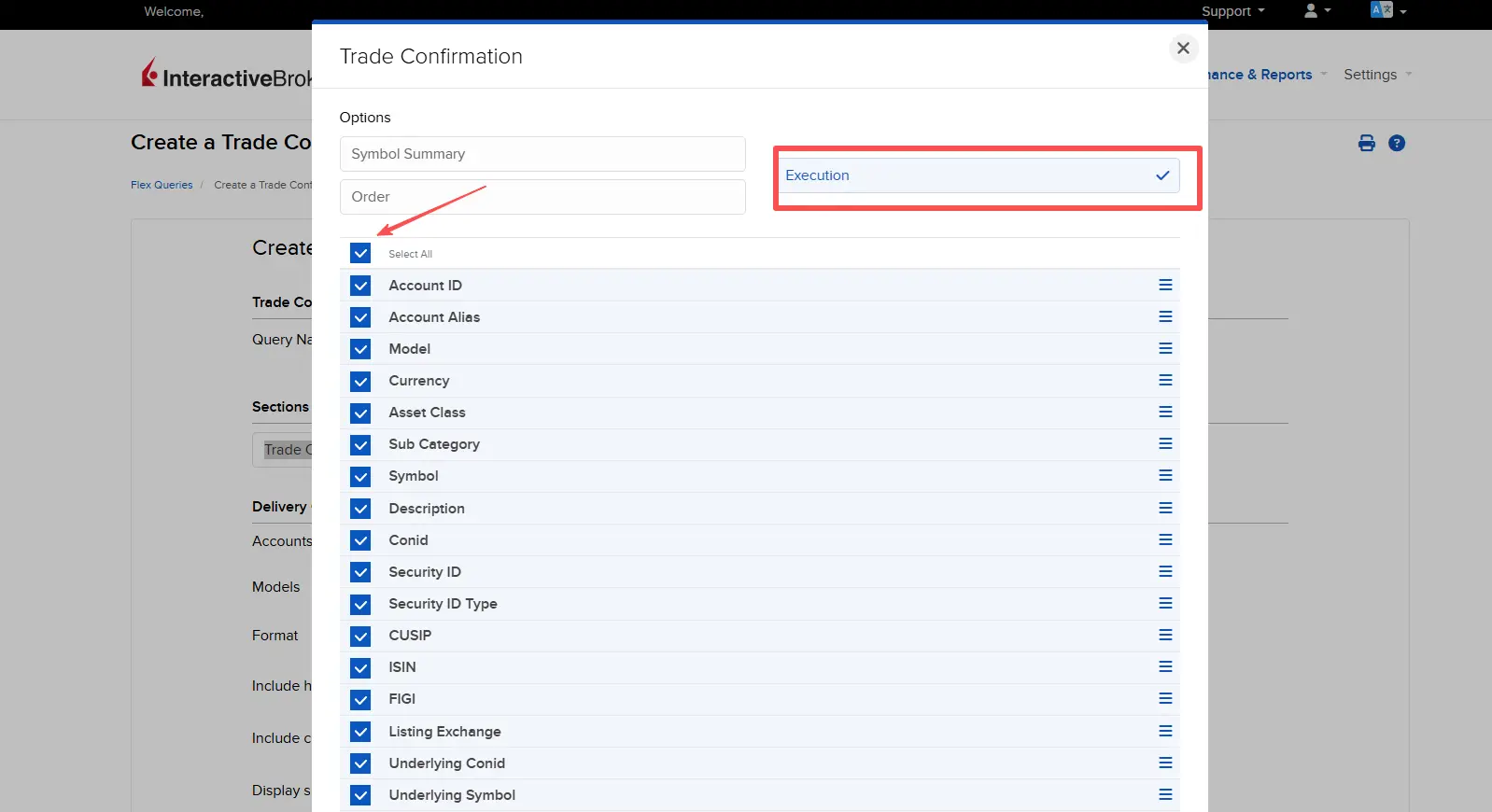
- Query Name: Enter a name (e.g., TradeBB-Import).
- Under "Select Sections," click on Trade Confirmation.
- In the popup window, select Executions and check Select All.
- Scroll down and click Save.
Step 3: Set Format
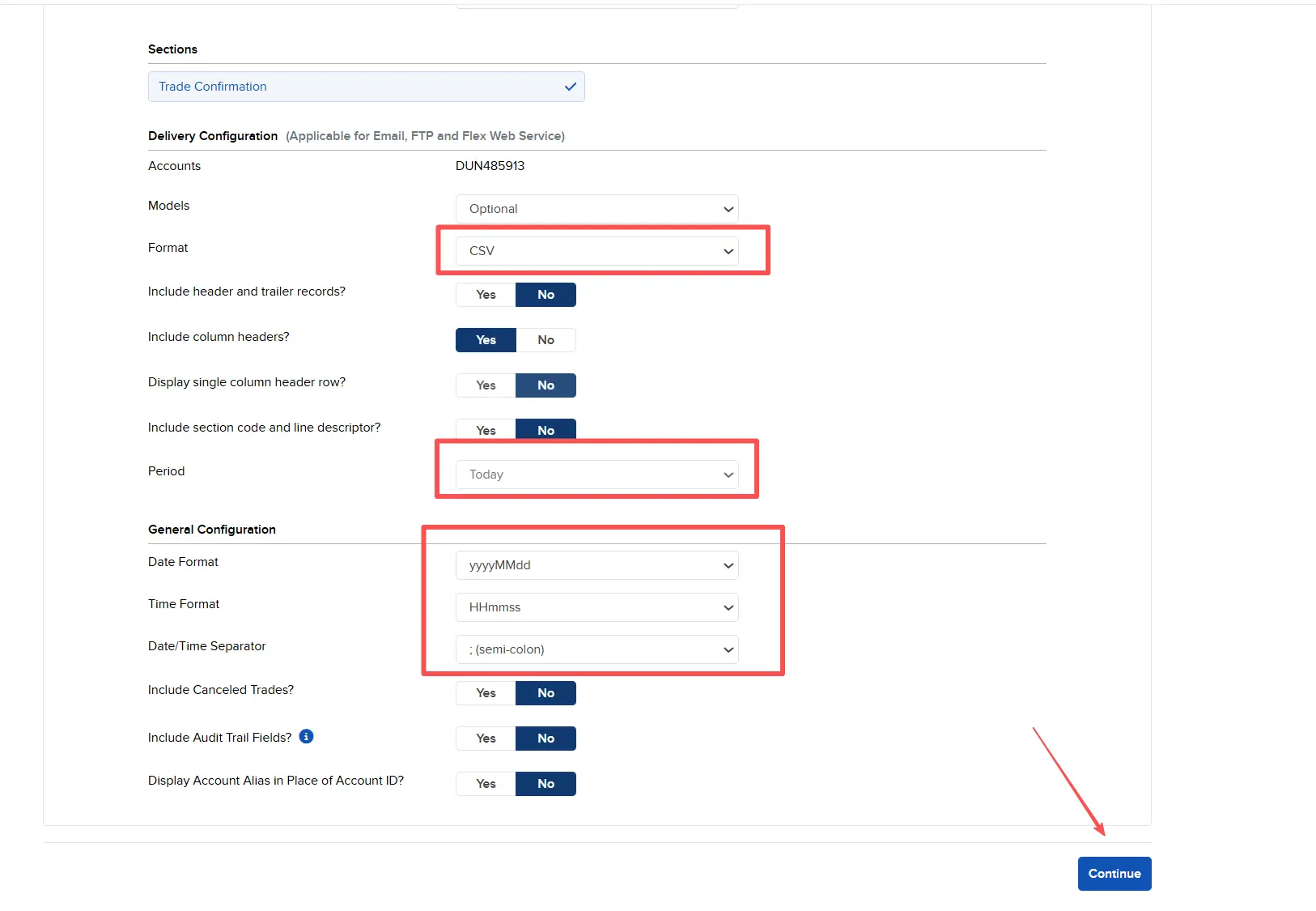
- Format: Ensure CSV is selected.
- Date/Time Format: Match the settings shown in the screenshot (standard format recommended).
- Click Continue.
Step 4: Finalize
- Review your settings on the summary page.
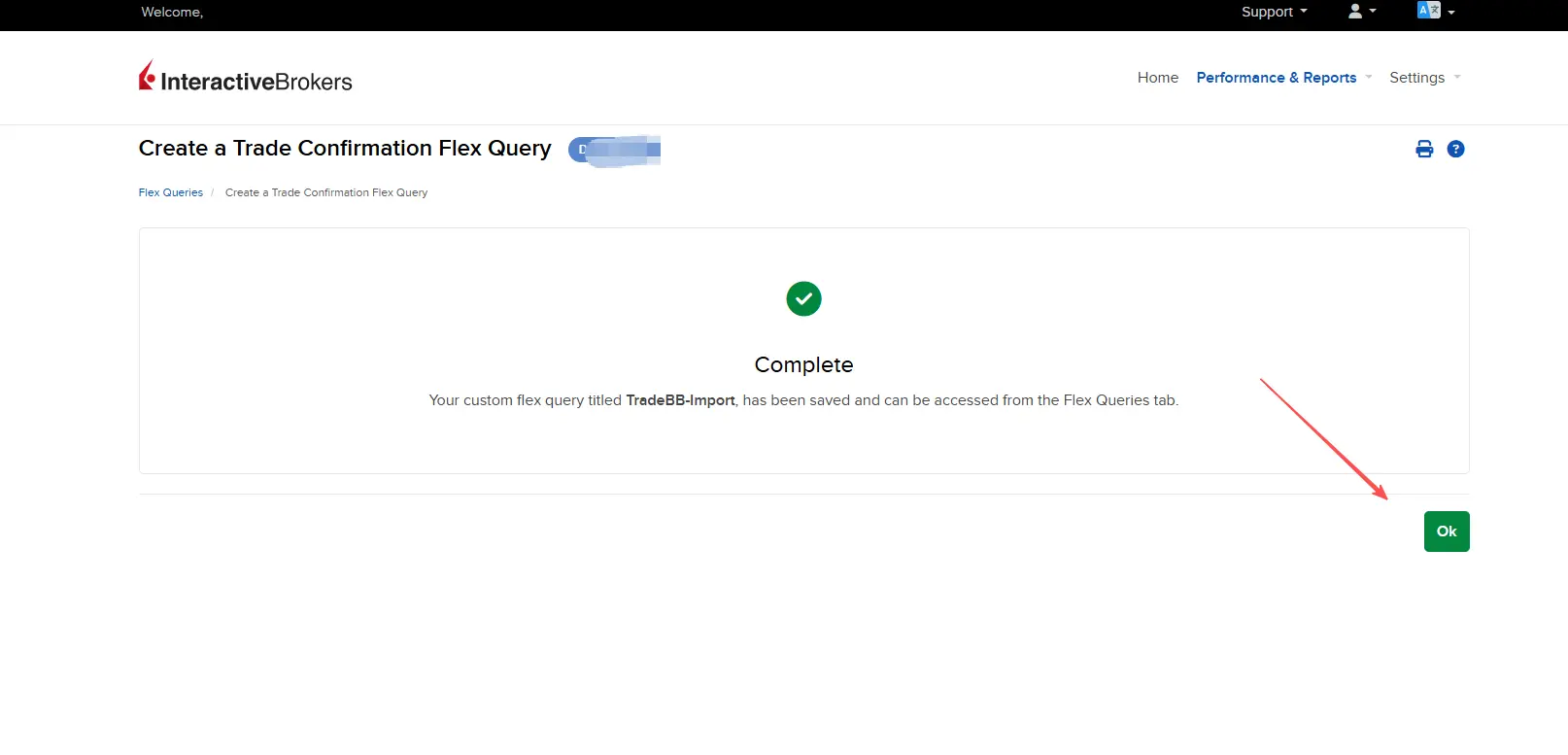
- Scroll to the bottom and click Create.
- Once you see the "Complete" status, click Ok.
Step 5:Exporting Your Data
Whenever you want to update your trading journal:
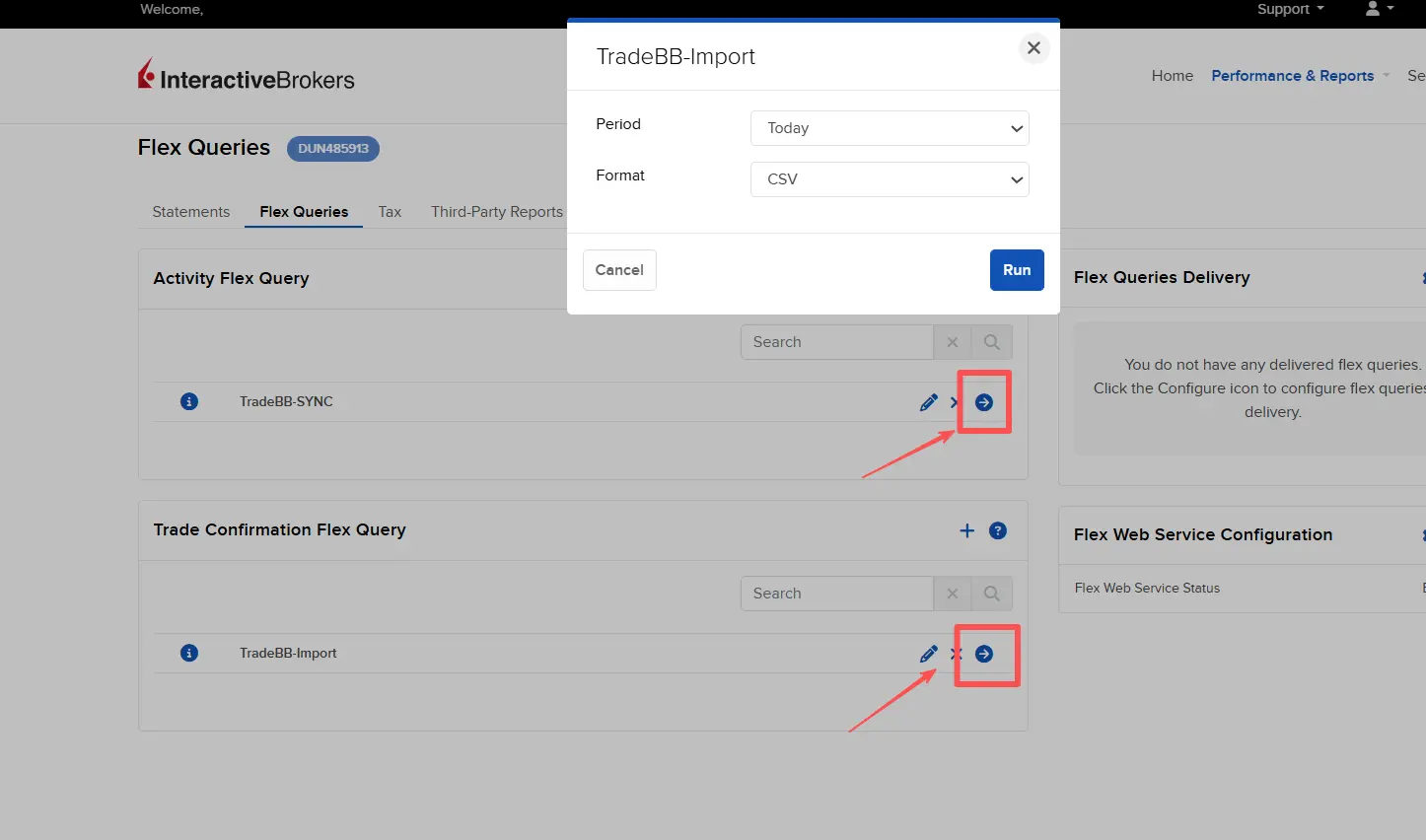
- Go back to the Flex Queries page in IBKR.
- Locate your saved query (TradeBB-Import).
- Click the Run icon (Arrow) next to the query name.
- The CSV file will automatically download to your computer.
Step 6:Upload to TradeBB
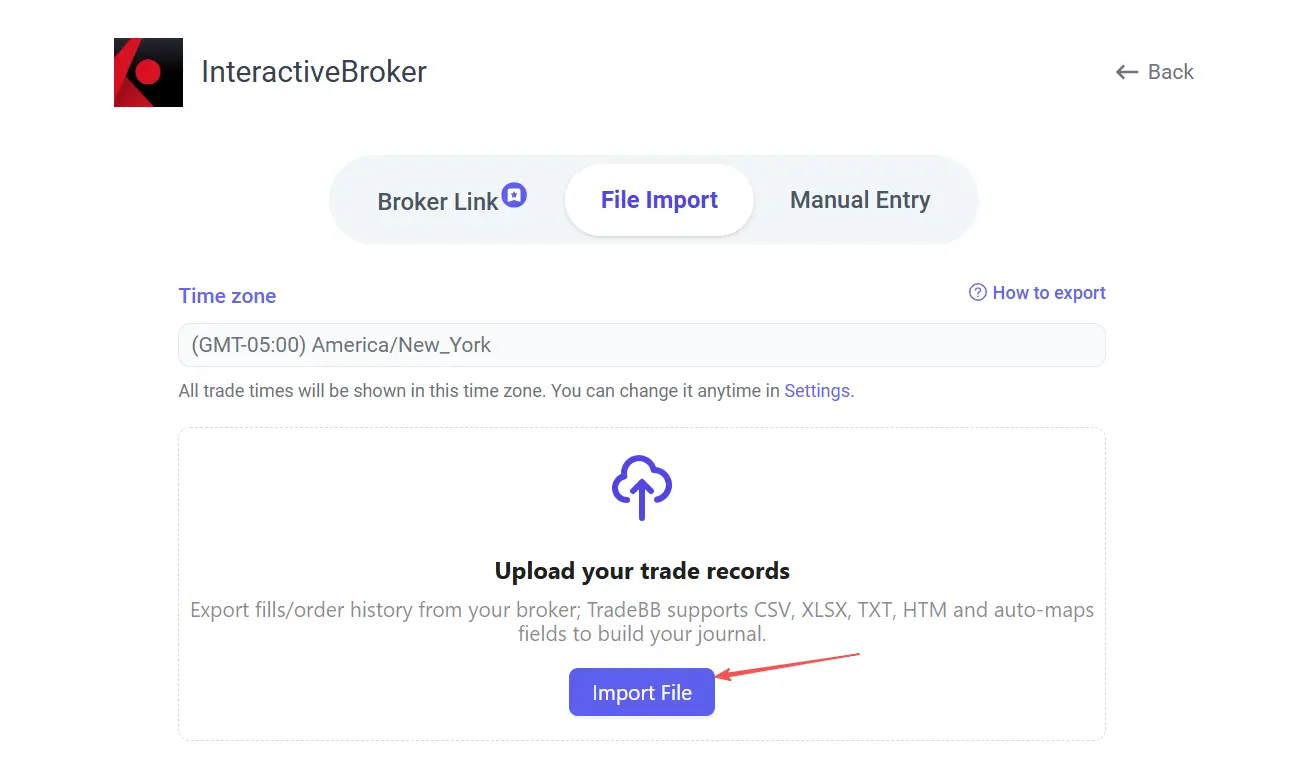
- Upload the CSV file you just downloaded from IBKR.
- Done! TradeBB will instantly analyze your new trade data.
Interactive Brokers FAQ
Is TradeBB an IBKR trading journal?
Yes. TradeBB can be used as an IBKR trading journal by importing or syncing trade data from Interactive Brokers through supported export or Flex Query workflows.
Does TradeBB replace Interactive Brokers?
No. TradeBB does not replace Interactive Brokers. It is a trading journal and performance review tool used to analyze your imported IBKR trade history.
Can TradeBB place trades in my IBKR account?
No. TradeBB is for trade tracking and performance analysis only. It does not provide trade execution, investment advice, or trading signals.
Can I import IBKR options trades?
Yes. TradeBB supports IBKR trade imports for stocks, options, futures, and forex, depending on the data included in your Interactive Brokers export.